Full Testing & Verification
5.6 Full Testing & Verification
Your app is ready — let’s prove it works perfectly
1. Start the Application
npm run dev
Open → http://localhost:3000
2 Full Testing & Verification – Checklist (Tick as you go!)
| Done | # | Action | Expected Result |
|---|---|---|---|
| ☐ | 1 | Open homepage (/) | Welcome card with Login and Sign Up buttons |
| ☐ | 2 | Click Sign Up → go to /signup | Clean sign-up form appears |
| ☐ | 3 | Register with new email + strong password | Success → switches to “Verify Email” screen |
| ☐ | 4 | Check your email (including Spam/Promotions) | Receive 6-digit verification code from Amazon Cognito |
| ☐ | 5 | Enter the code | Success → automatically redirected to Sign In page |
| ☐ | 6 | Sign in with the same credentials | Success → redirected to Dashboard |
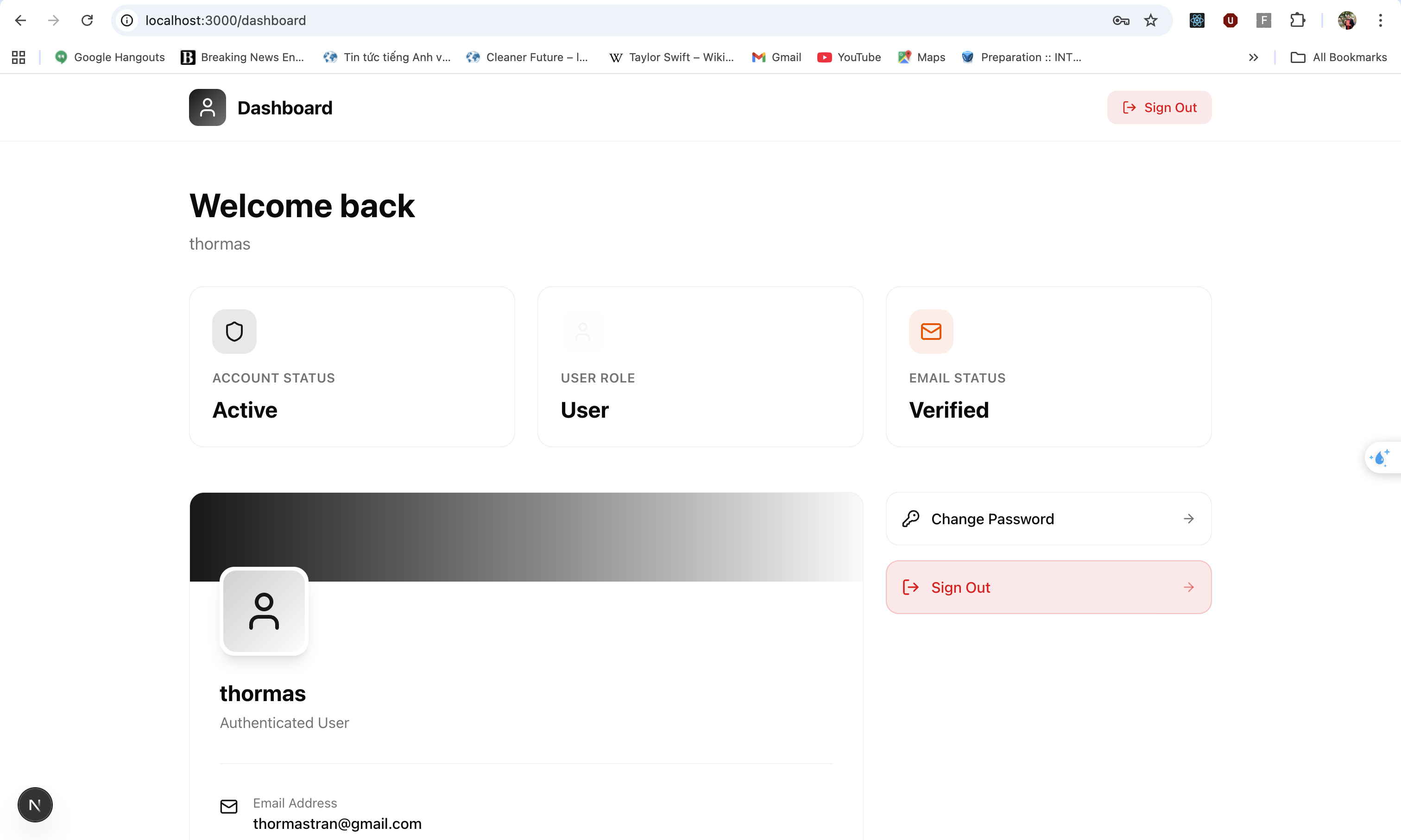
| ☐ | 7 | Dashboard loads | Shows your name, email, role = user, and beautiful layout |
| ☐ | 8 | Click Sign Out | Logged out → back to homepage |
| ☐ | 9 | Open new tab → go directly to /dashboard | Immediately redirected to /signin → ProtectedRoute works perfectly |
| ☐ | 10 | Try signing up with the same email again | Error: “Account already exists.” |
| ☐ | 11 | Sign in with wrong password | Error: “Invalid email or password” |
| ☐ | 12 | Create new user → don’t verify → try login | Error: “Please verify your email first” |
3. Change Password Testing
| Done | # | Action | Expected Result |
|---|---|---|---|
| ☐ | 13 | Sign in with verified account | Successfully logged in to Dashboard |
| ☐ | 14 | Navigate to Change Password section | Form with Current Password, New Password, Confirm New Password fields |
| ☐ | 15 | Submit with wrong current password | Error: “Current password is incorrect” |
| ☐ | 16 | Submit with weak new password | Error: “Password does not meet requirements” |
| ☐ | 17 | Submit with mismatched confirm password | Error: “Passwords do not match” |
| ☐ | 18 | Submit with correct current + strong new password | Success: “Password changed successfully” |
| ☐ | 19 | Sign out and sign in with old password | Error: “Invalid email or password” |
| ☐ | 20 | Sign in with new password | Success → Dashboard loads correctly |
4. Forgot Password Testing
| Done | # | Action | Expected Result |
|---|---|---|---|
| ☐ | 21 | Go to Sign In page → Click Forgot Password? | Redirected to Forgot Password page |
| ☐ | 22 | Enter registered email address | Success: “Reset code sent to your email” |
| ☐ | 23 | Check email for password reset code | Receive 6-digit reset code from Amazon Cognito |
| ☐ | 24 | Enter reset code + new strong password | Success: “Password reset successfully” → redirected to Sign In |
| ☐ | 25 | Sign in with new password | Success → Dashboard loads correctly |
All 25 checks passed? → You’ve just built a 100% working, production-grade authentication system with complete password management!
when you access dashboard like this picture .
You’re officially done — go deploy it and show the world!
Navigation:
- Previous: 5.5 Authentication Functions
- Next Step: 5.7 Clean Up Resources → Remove AWS resources to avoid charges
Next → 5.7 Clean Up Resources (optional but recommended)